Tutorials
A ten-minute guide: what the portal does, what each screen is for, what to do at every stage, and how the AI is used. All screenshots are real pages from the demo data.
1. What this portal does
- A credit application moves through 10 stages. Each stage has its own workspace, a gate (what must be done) and three actions: Complete & move on, Return with comments, Decline. Later stages stay locked until the previous one passes the application forward.
- The AI reads the uploaded document pack, fills the financial spreads with a page citation on every number, computes ratios against the bank's thresholds, drafts the CAM narrative, suggests a risk rating and answers questions about the documents. A person verifies, edits and approves everything — the AI never approves or decides.
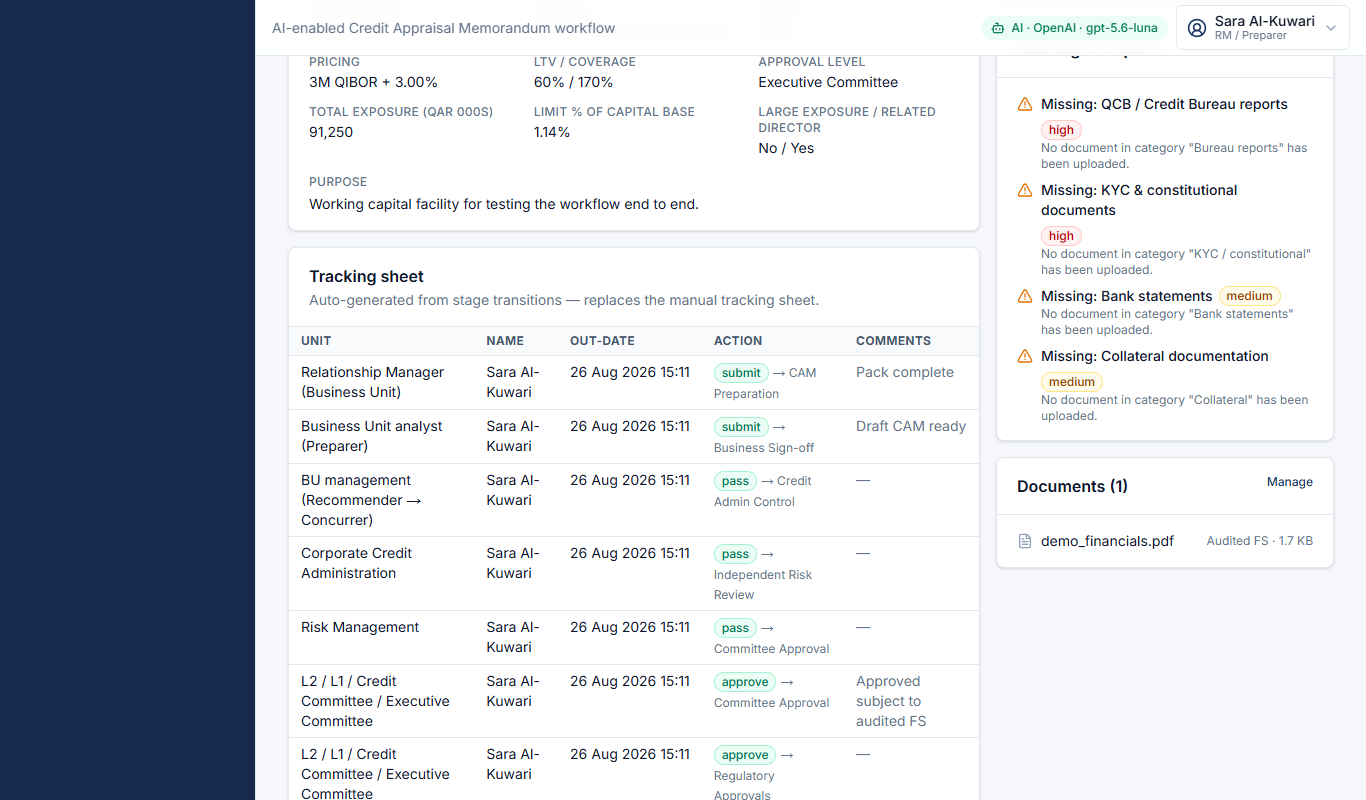
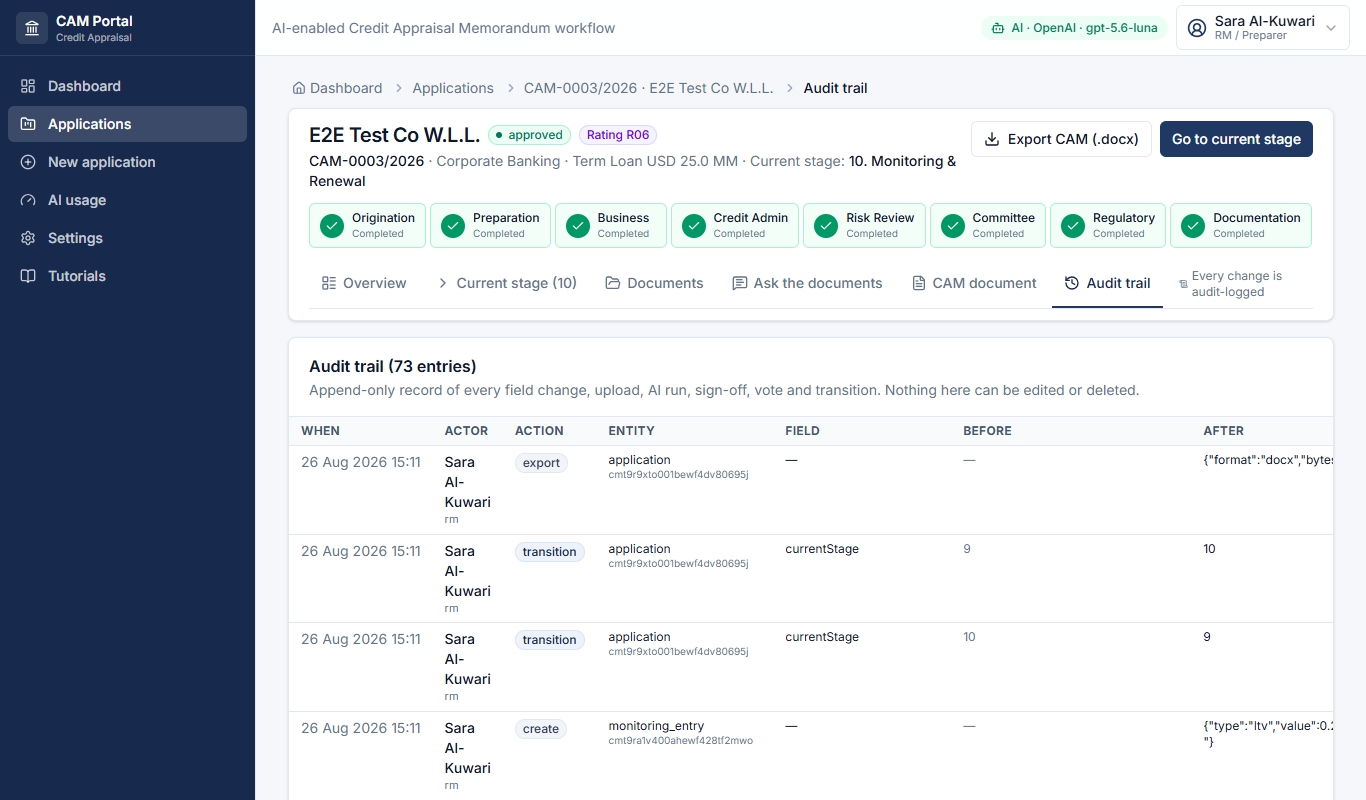
- Every field change, upload, sign-off, vote and AI run goes to an append-only audit trail; each hand-over is timestamped and builds the tracking sheet automatically.
- The finished CAM exports to Word (.docx) in the bank's template at any stage.
2. Quick start — one application end to end
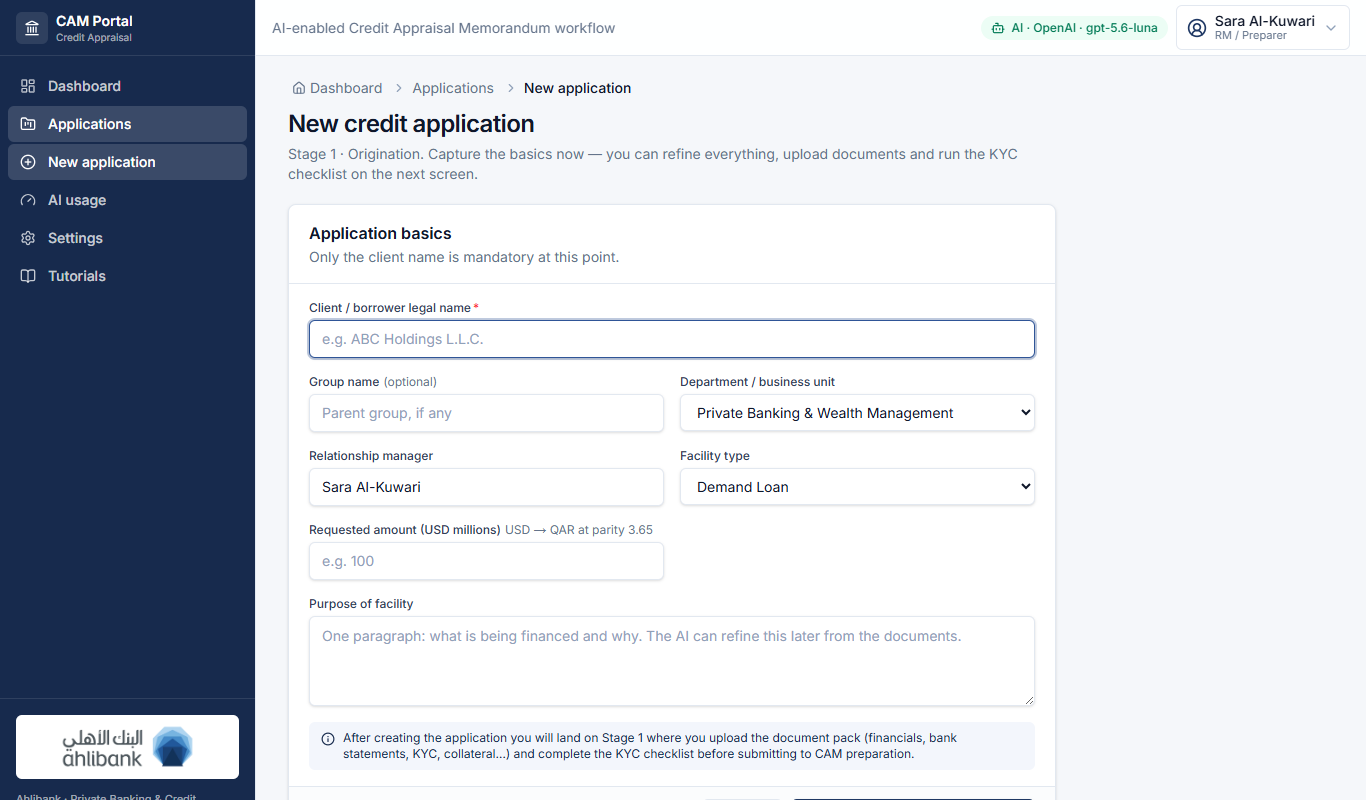
- New application: client name, facility type, amount (USD 000s), purpose → Create. You land on Stage 1.
- Stage 1: check the details, upload the document pack, tick the KYC checklist → Complete & move to Stage 2.
- Stage 2: Run AI extraction → verify the spreads → Draft all sections with AI → edit & approve → propose a rating → Complete.
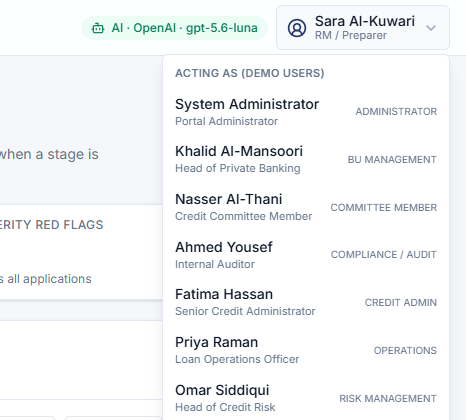
- Stage 3: e-sign Prepared → Recommended → Concurred (switch people with Acting as, top-right) → Complete.
- Stage 4: control & documentation checklists, verification signature → Complete.
- Stage 5: Risk confirms/overrides the rating, adds conditions, signs Reviewed → Concurred → Complete.
- Stage 6: confirm the approval level, add members, record votes, record the decision → Complete.
- Stages 7–10: regulatory approvals → CPs & security → drawdowns & booking → monitoring. Export CAM (.docx) from the banner at any time.
3. Know the screen
The two layouts you will use all day.
Dashboard
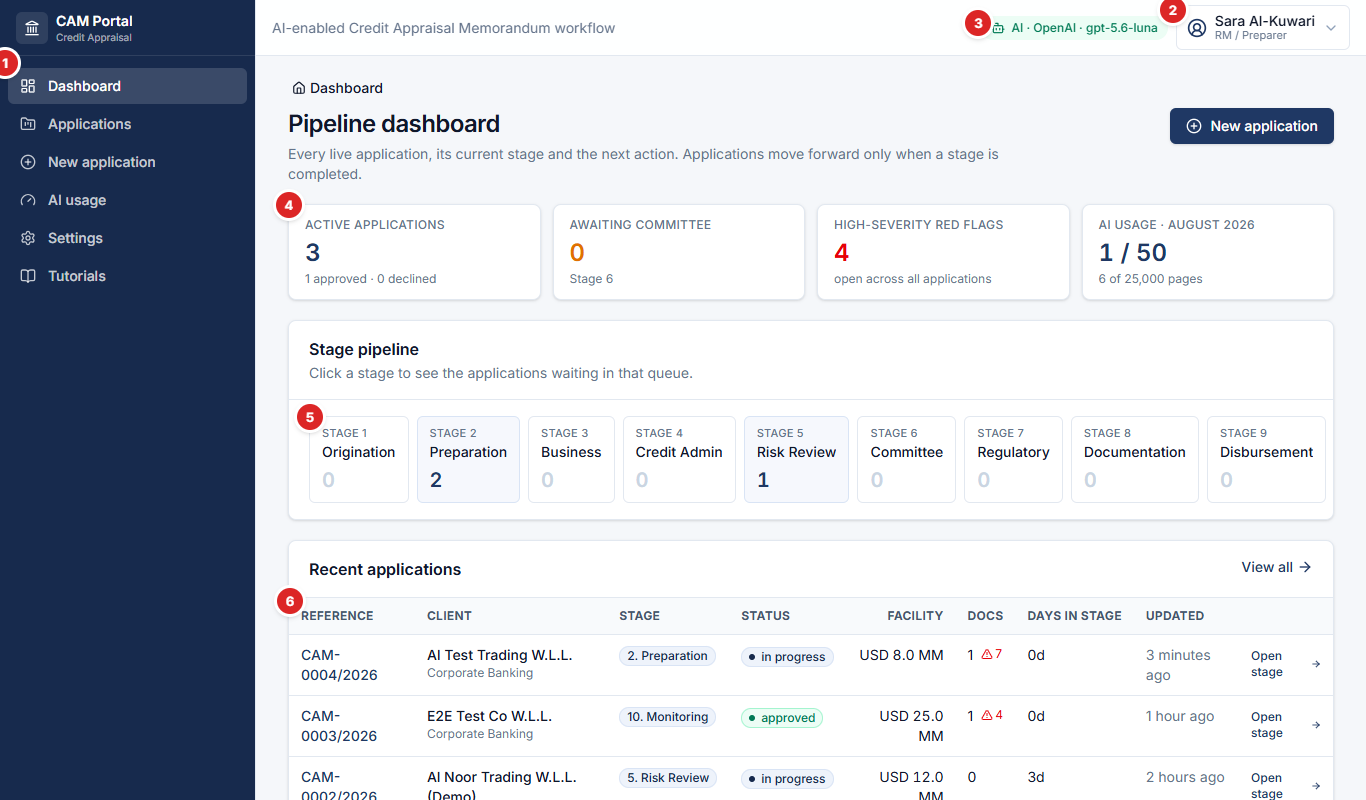
- 1Sidebar — Dashboard, Applications, New application, AI usage, Settings, Tutorials.
- 2Acting as — switch the user you are working as (demo users for every role). Every action is recorded against this name.
- 3AI status — provider and model currently in use.
- 4KPI tiles — active applications, committee queue, high-severity red flags, monthly AI usage vs quota.
- 5Stage pipeline — how many applications sit in each stage; click a stage to open that queue.
- 6Recent applications — stage, status, facility, days in stage; “Open stage” jumps to the current workspace.
Application workspace
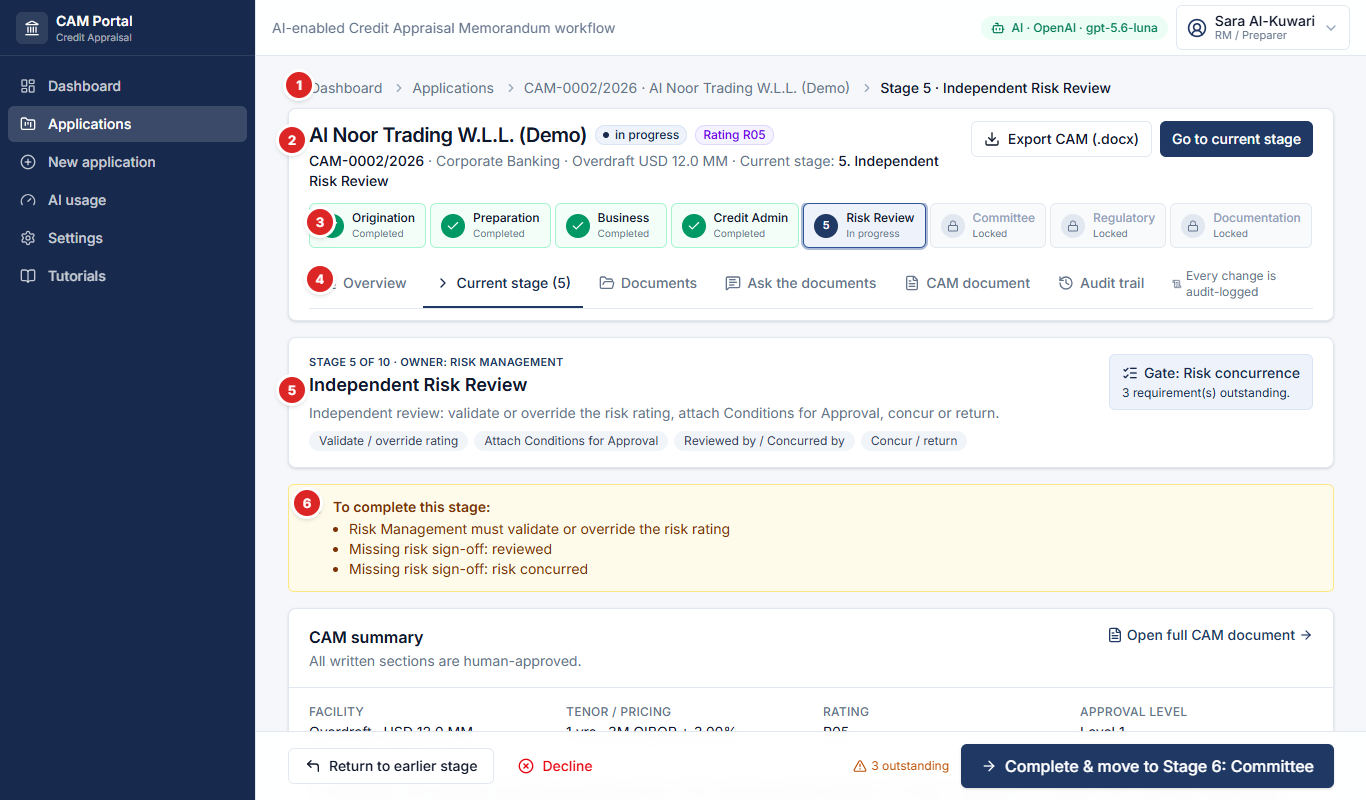
- 1Breadcrumbs — always show where you are; click to go back.
- 2Application banner — client, status, rating, Export CAM (.docx), Go to current stage.
- 3Stage stepper — green = completed, blue = current, lock = not reachable yet. Click any unlocked stage to open it.
- 4Tabs — Overview · Current stage · Documents · Ask the documents · CAM document · Audit trail.
- 5Stage header — owner, what the stage is for, the gate to the next stage.
- 6To complete this stage — the exact outstanding requirements; advisory items are shown separately.

- 7Complete & move to the next stage — confirms the hand-over (optional comment for the tracking sheet). Outstanding requirements can be overridden with a reason; the override is audit-logged.
- 8Return to an earlier stage (comments required, sent back to that team) and Decline.
4. The ten stages
Owner · what to do · where the AI helps · what the gate checks.
1
Origination & KYC
Owner: Relationship Manager (Business Unit)
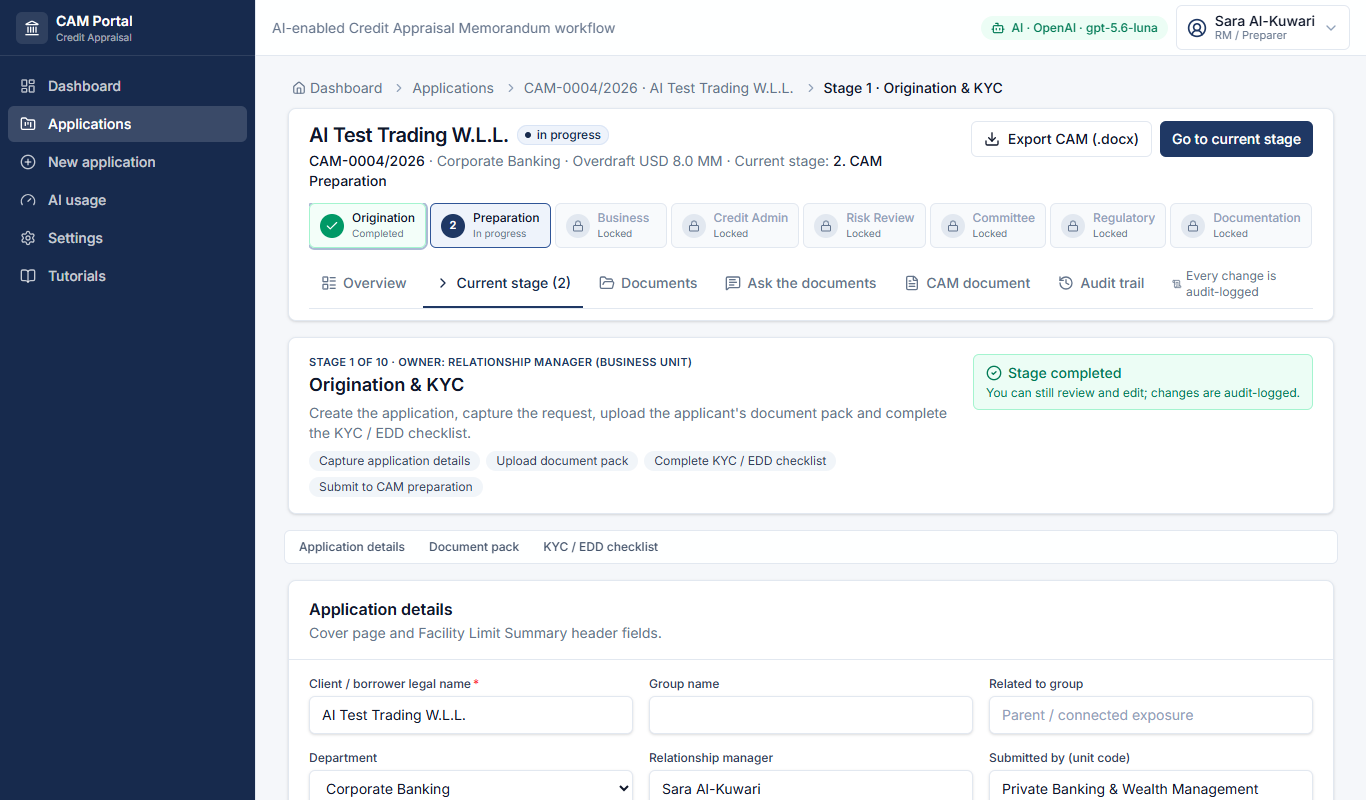
- Complete the application details (client, group, department, facility, amount, purpose).
- Upload the document pack — pick the category, or “Other / auto-classify” to let the AI decide.
- Tick the KYC / EDD checklist.
AI Uploads are read in Stage 2; nothing is sent to the AI yet.
Gate Client name, purpose, amount and at least one document.
2
CAM Preparation
Owner: Business Unit analyst (Preparer)
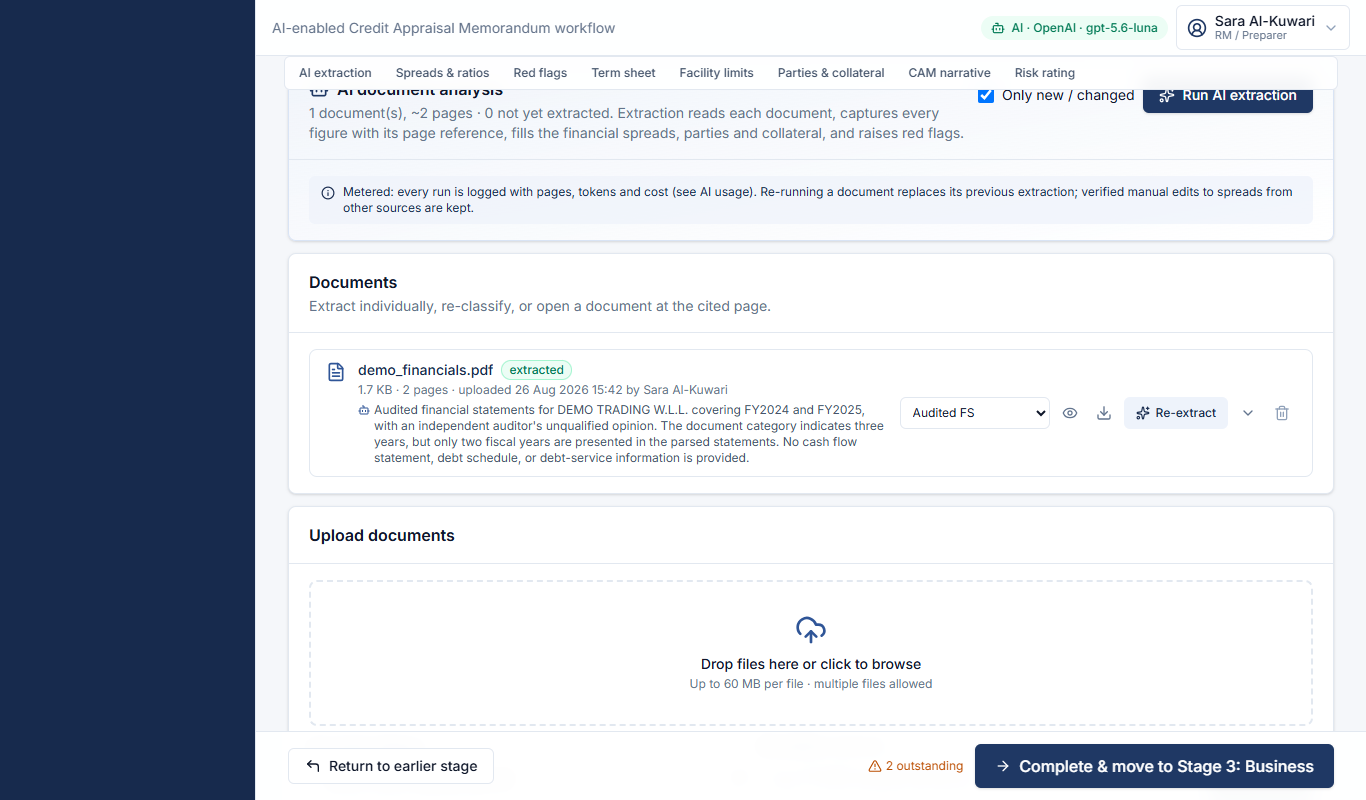
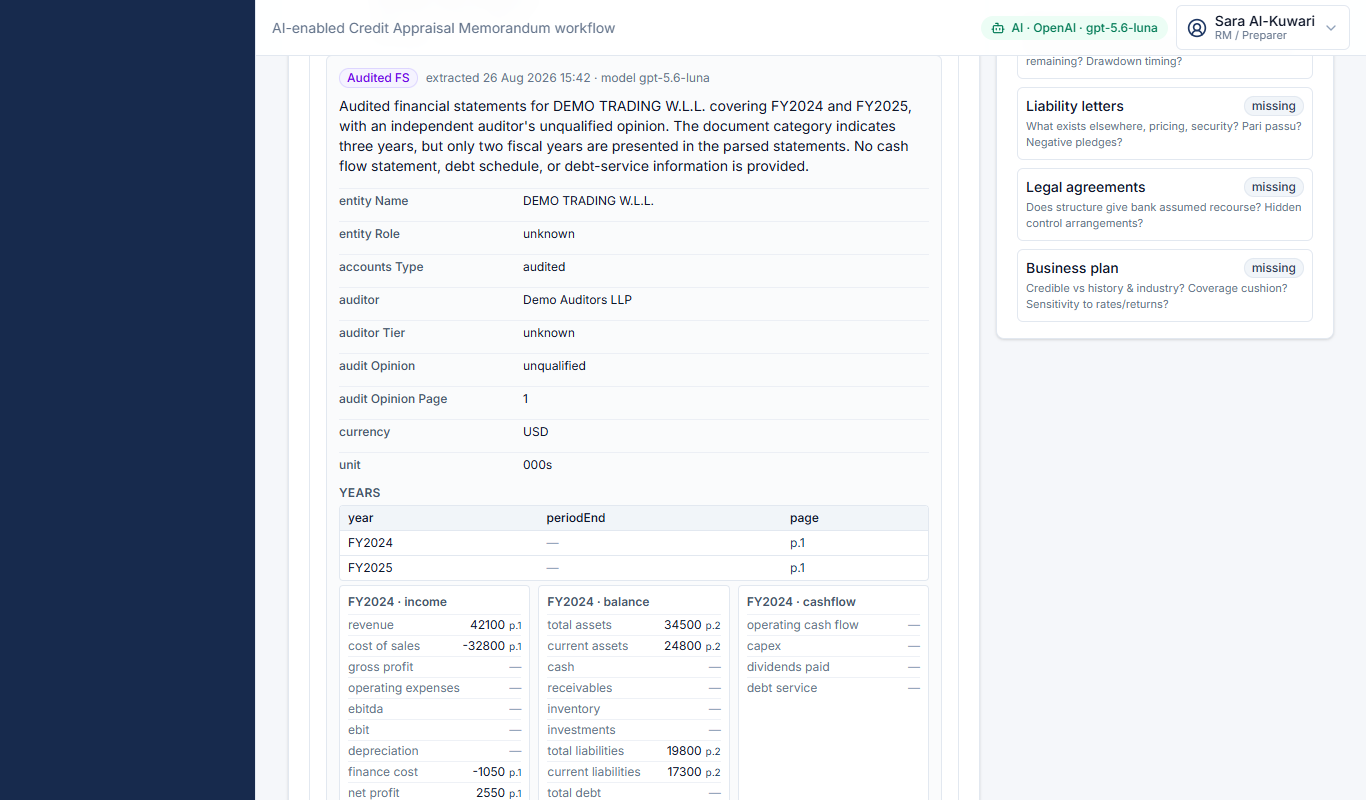
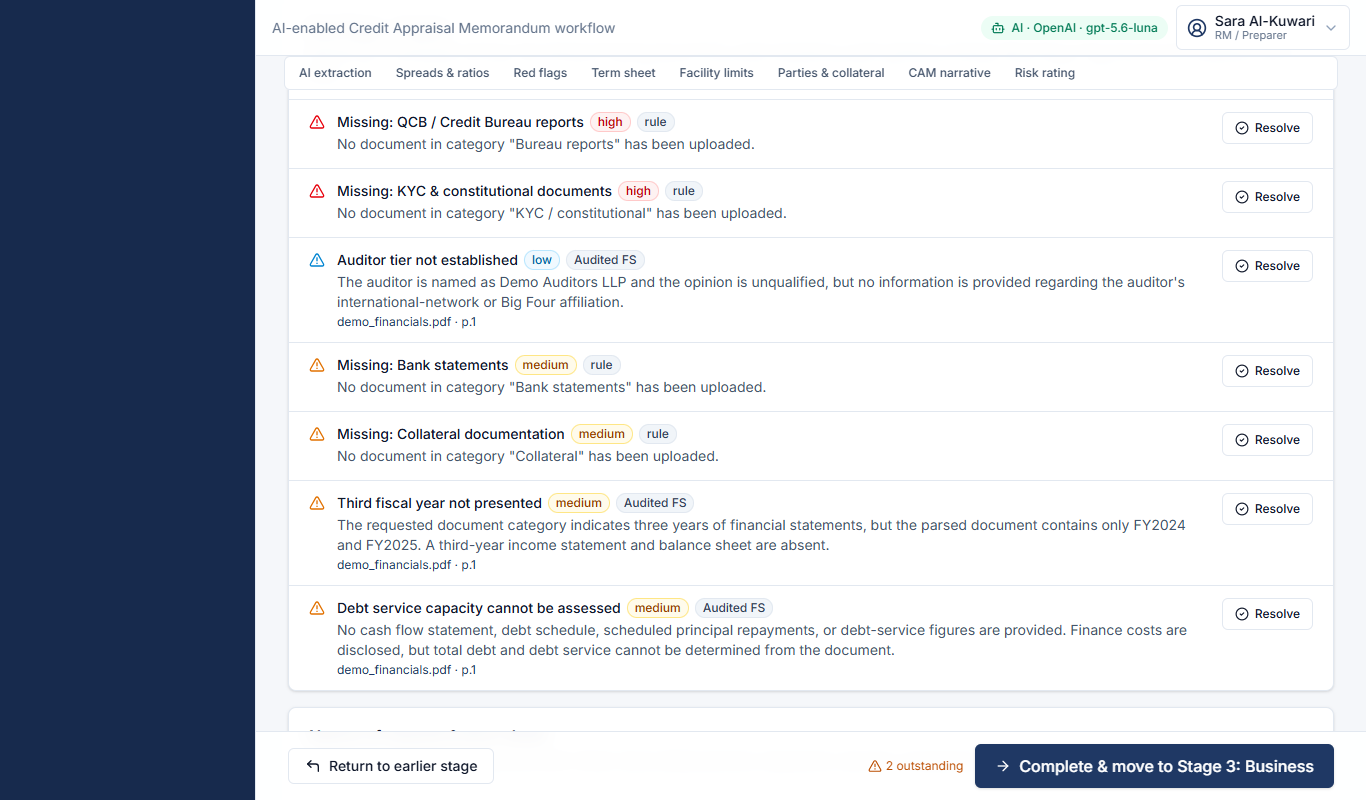
- Click Run AI extraction — every document is classified and read; spreads, parties, collateral and red flags are filled in.
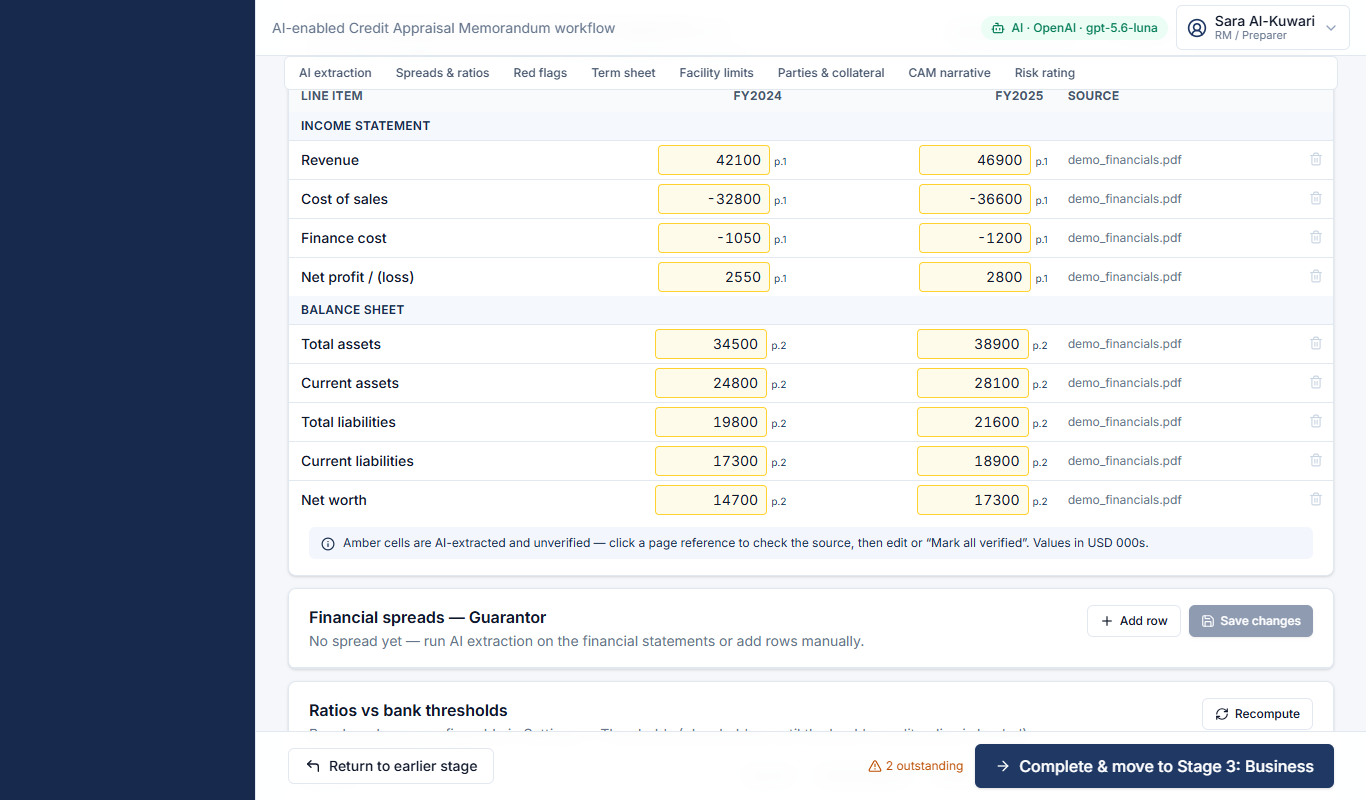
- Verify the spreads: amber cells are AI-extracted and unverified; click p.N to open the source page, then correct or Mark all verified.
- Check the ratios and red flags, complete the term sheet, facility limits and parties.
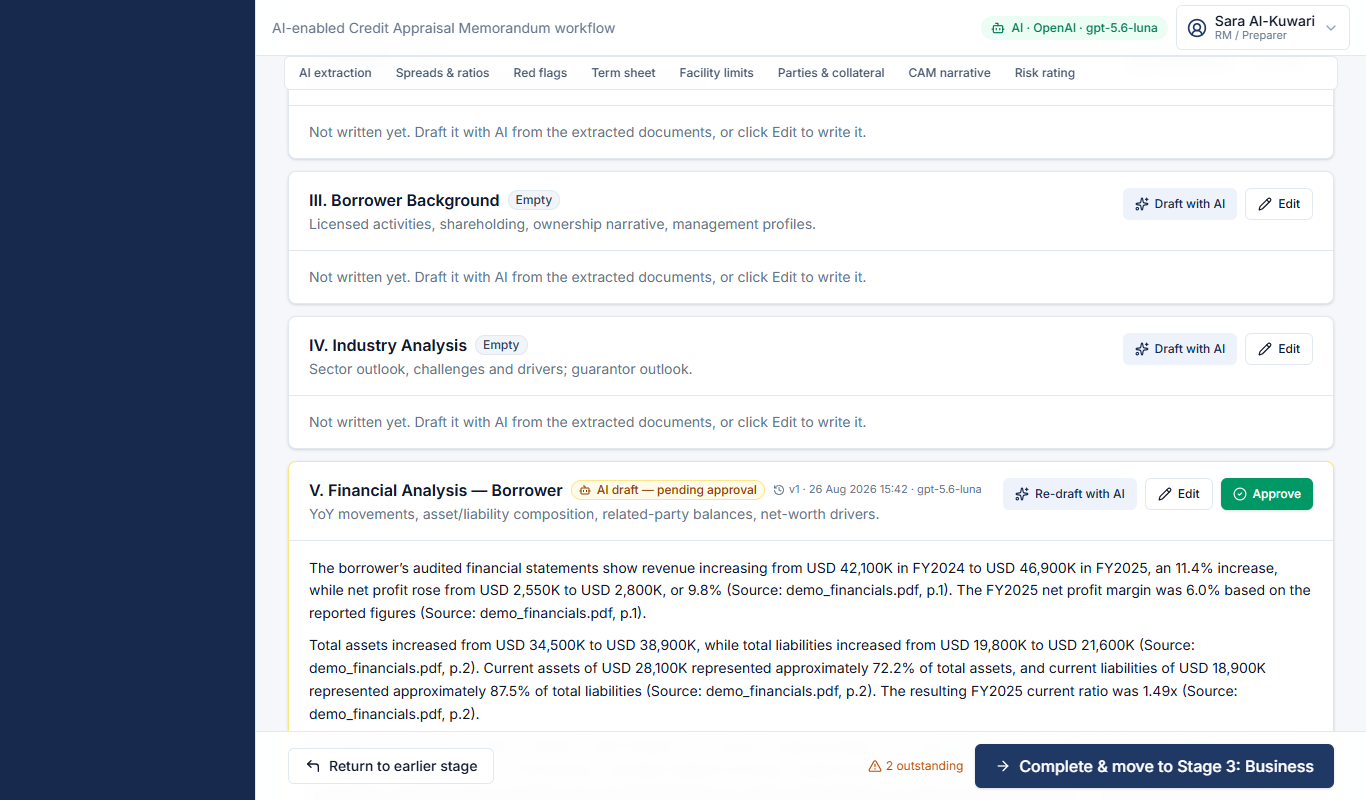
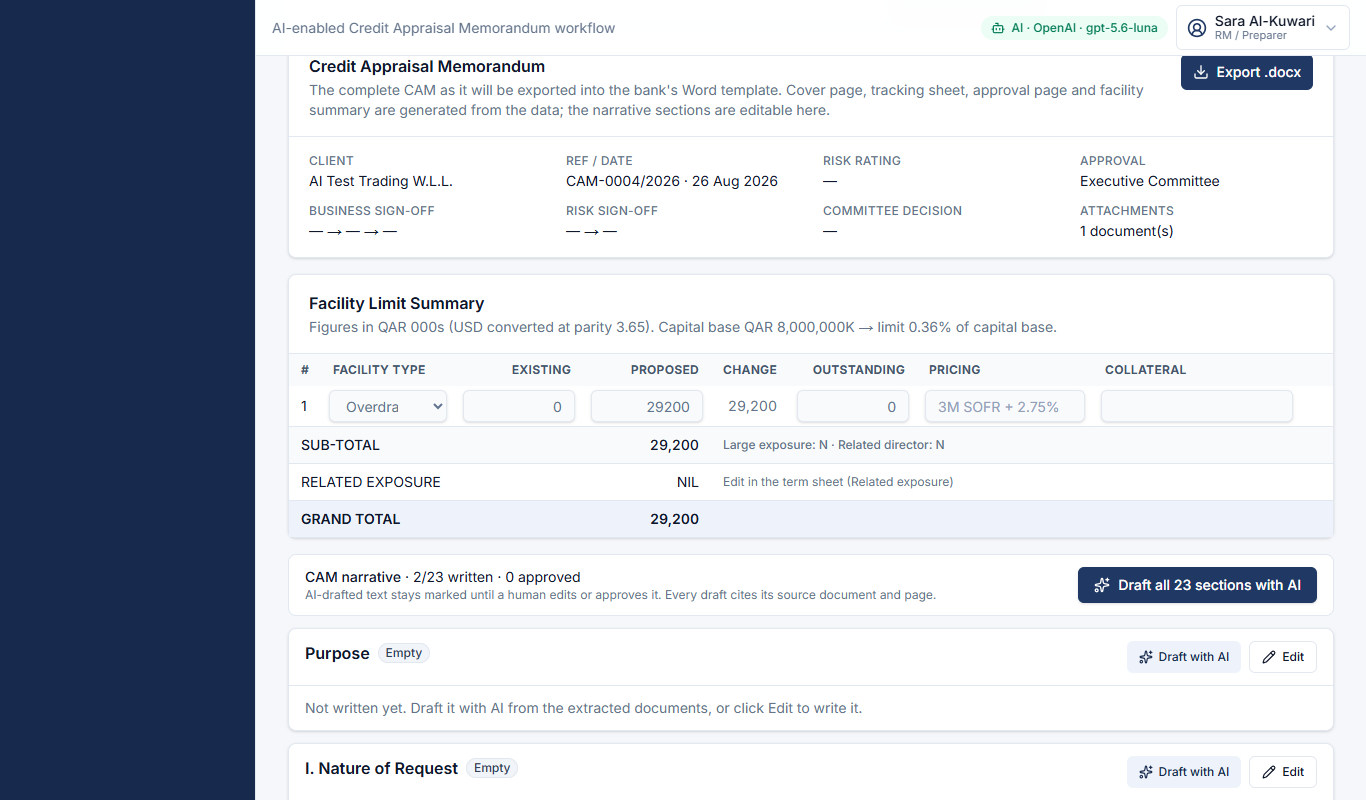
- Draft all sections with AI, then edit and Approve each section (AI drafts stay marked until approved).
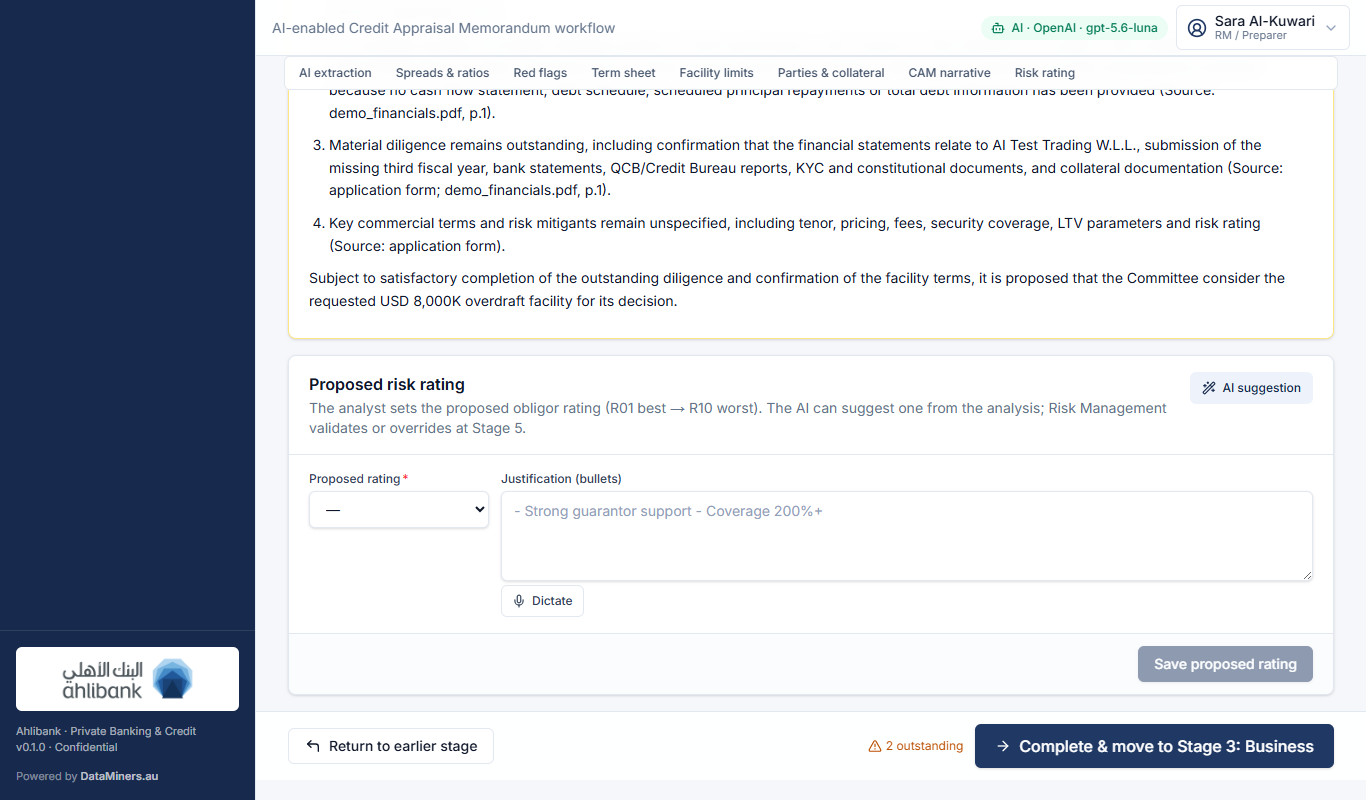
- Propose the risk rating — AI suggestion gives a rating with rationale.
AI Extraction (page-cited), ratios, red flags, narrative drafting, rating suggestion.
Gate Nature of Request and Recommendation written; a proposed rating.
3
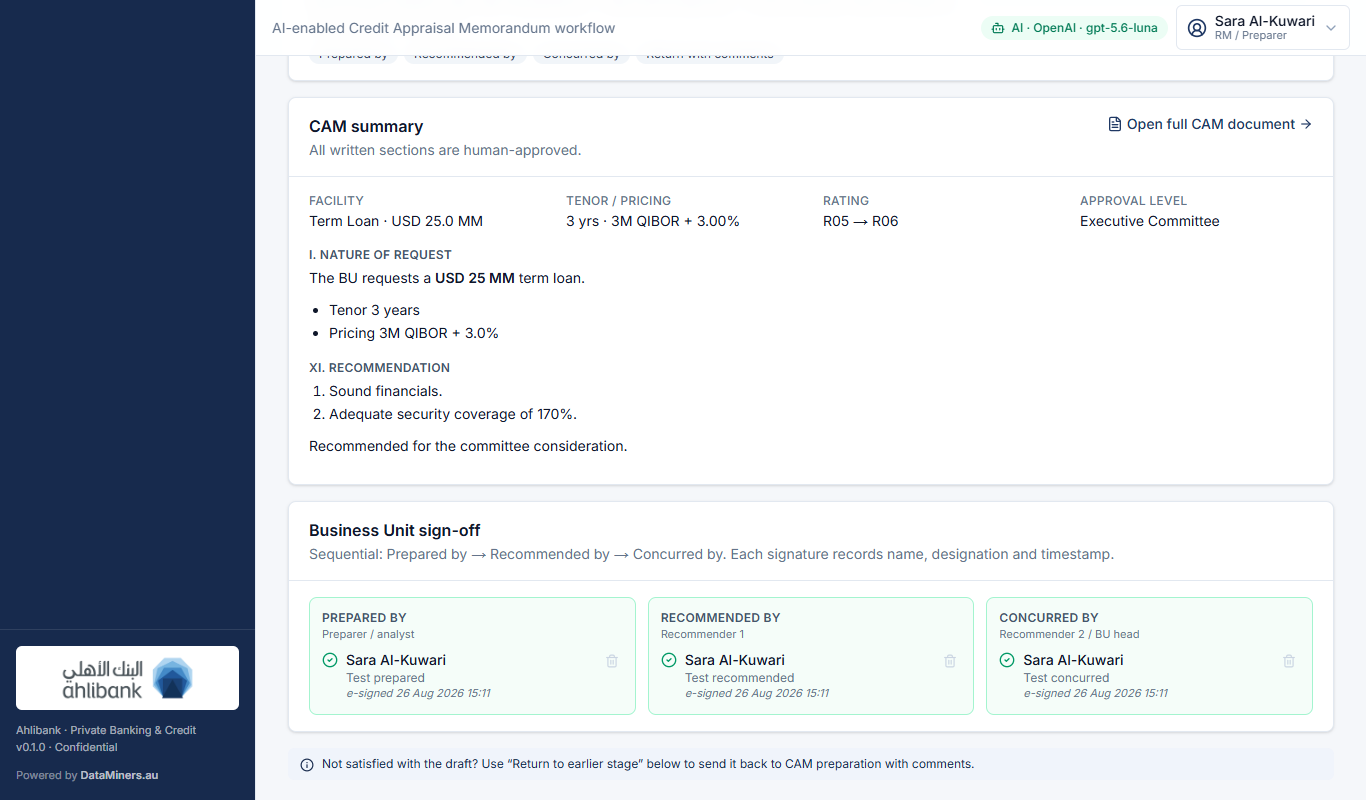
Business Sign-off
Owner: BU management (Recommender → Concurrer)
- Review the CAM summary (or open the full CAM document tab).
- E-sign Prepared by → Recommended by → Concurred by — the order is enforced; use *Acting as* to sign as different people.
- Not satisfied? Return to earlier stage with comments.
Gate All three business signatures.
4
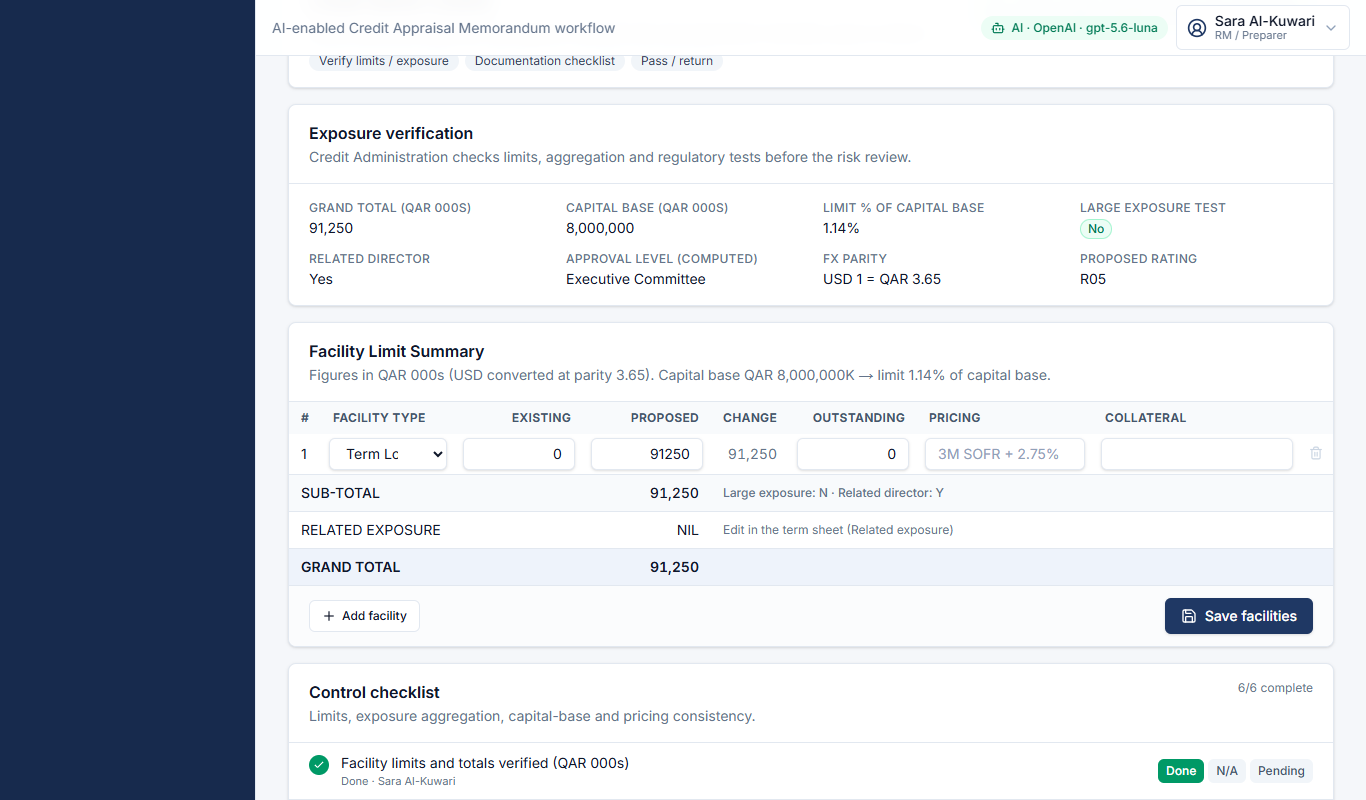
Credit Admin Control
Owner: Corporate Credit Administration
- Check the exposure summary: grand total, % of capital base, large-exposure test and the computed approval level.
- Confirm the facility limit grid (QAR 000s).
- Complete the control and documentation checklists and sign Verified by.
Gate Control checklist complete + verification signature.
5
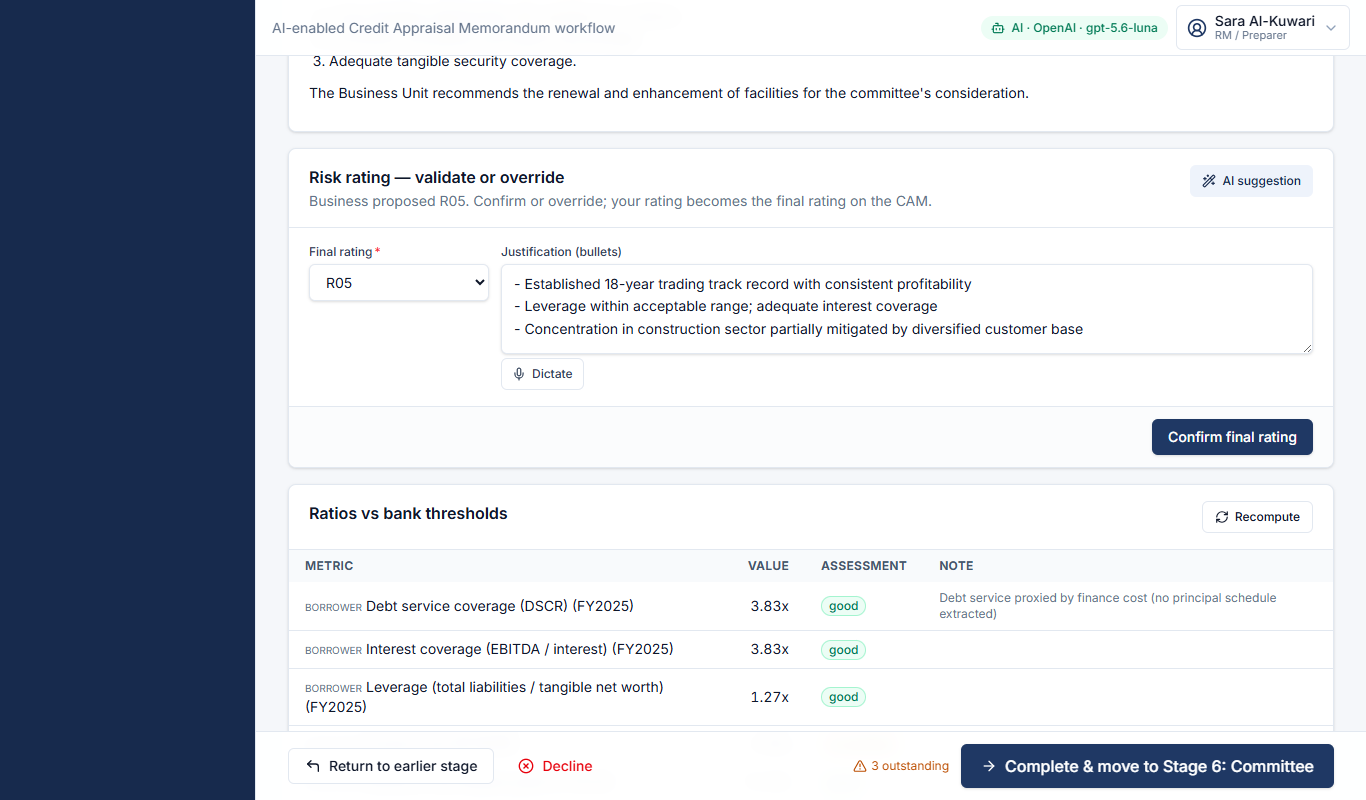
Independent Risk Review
Owner: Risk Management
- Confirm or override the rating (AI suggestion available) — this becomes the final rating on the CAM.
- Add Conditions for approval (AI-suggested conditions can be added with one click).
- E-sign Reviewed by → Concurred by.
AI Rating suggestion with rationale and suggested conditions.
Gate Final rating + both risk signatures.
6
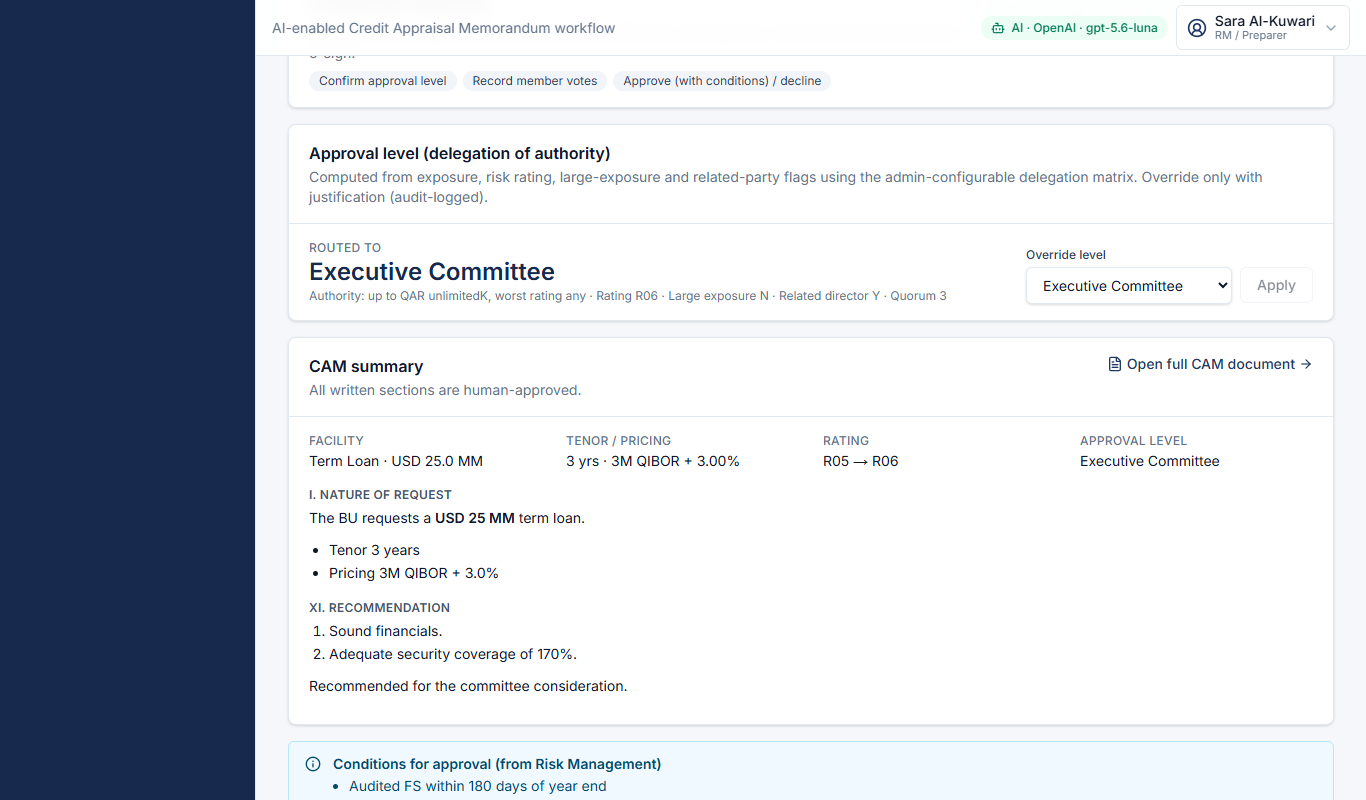
Committee Approval
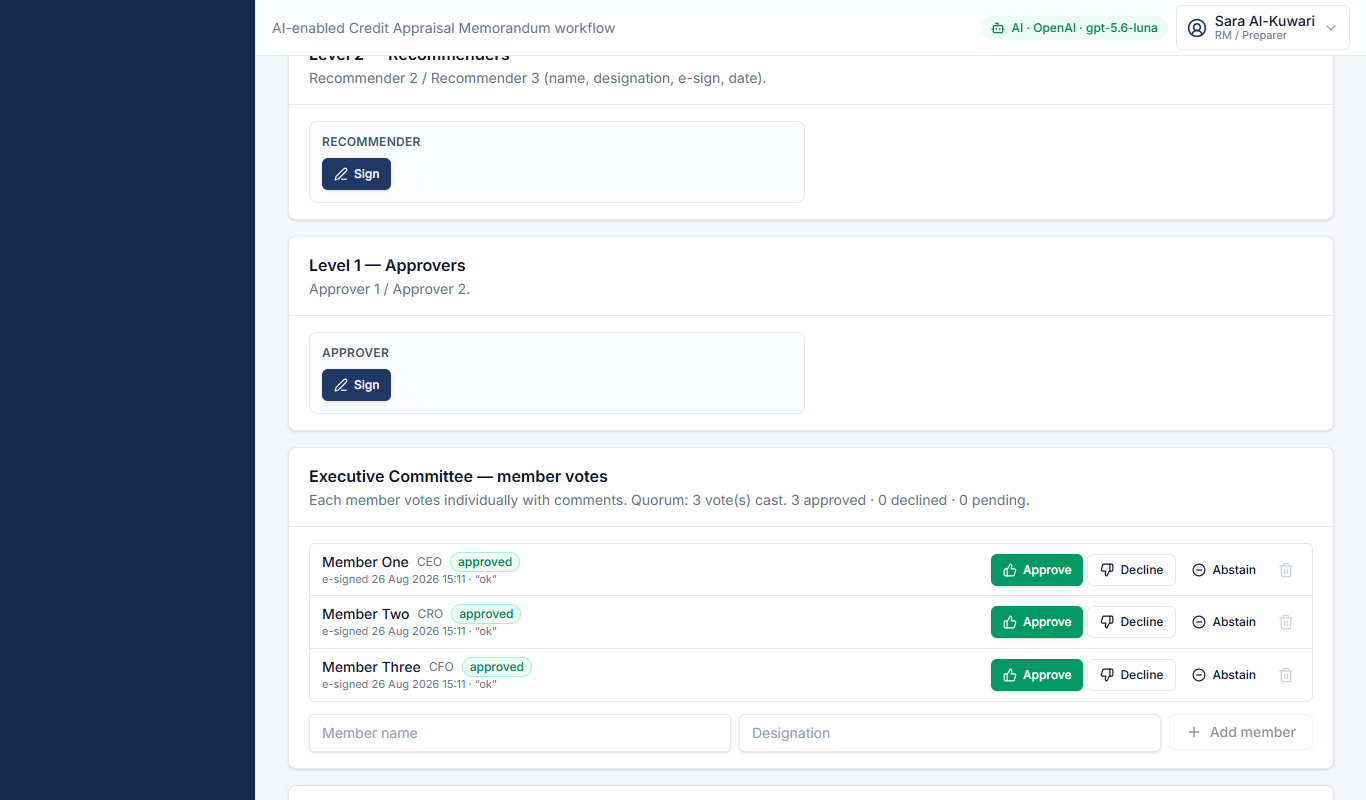
Owner: L2 / L1 / Credit Committee / Executive Committee
- The approval level (L2 / L1 / Credit Committee / Executive Committee) is computed from the delegation matrix — override with justification if needed.
- Record Level 2 recommenders and Level 1 approvers.
- Add committee members, record each vote with comments, then Approve / Approve with conditions / Defer / Decline.
Gate A recorded decision (quorum is shown, not enforced).
7
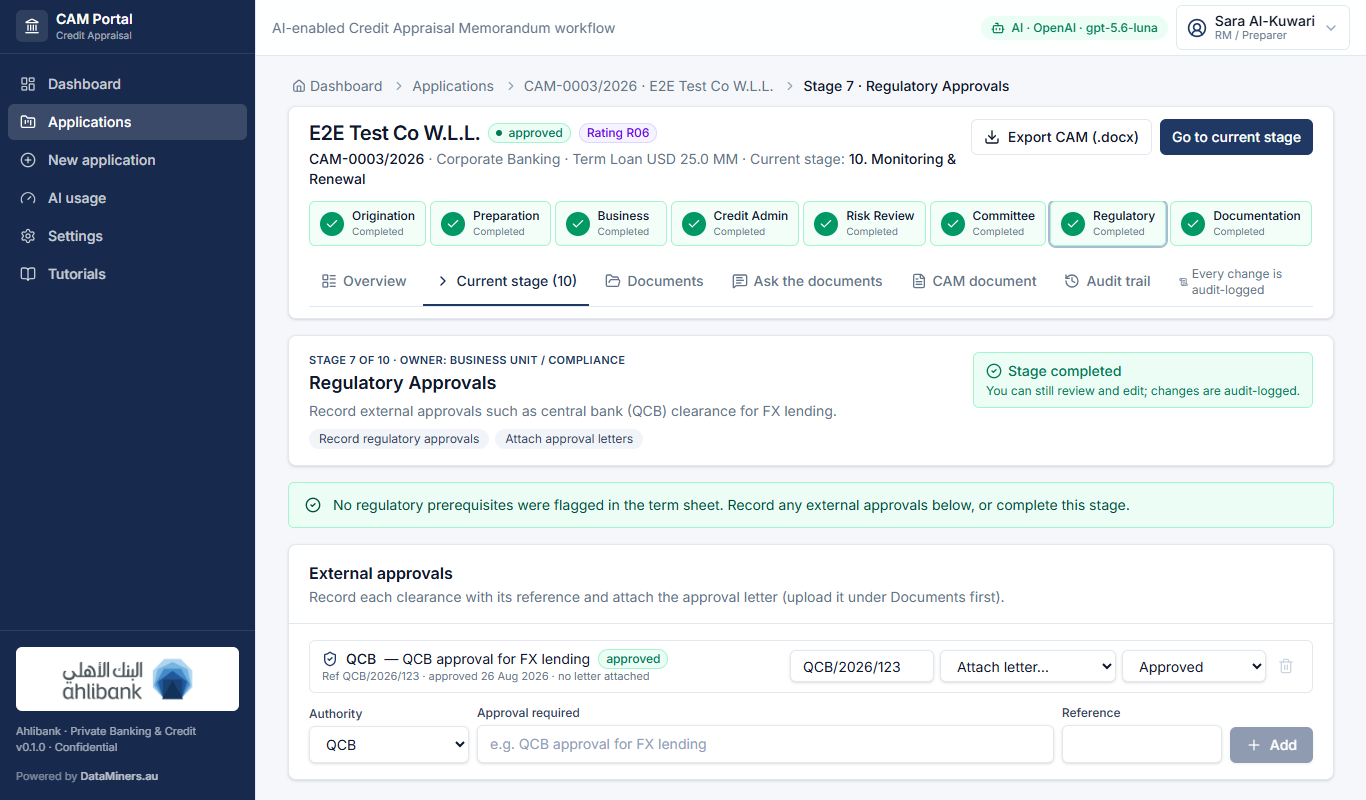
Regulatory Approvals
Owner: Business Unit / Compliance
- Regulatory prerequisites flagged in the term sheet (e.g. QCB approval for FX lending) are listed.
- Record each external approval with its reference, attach the letter, set status Approved.
Gate No approval left pending.
8
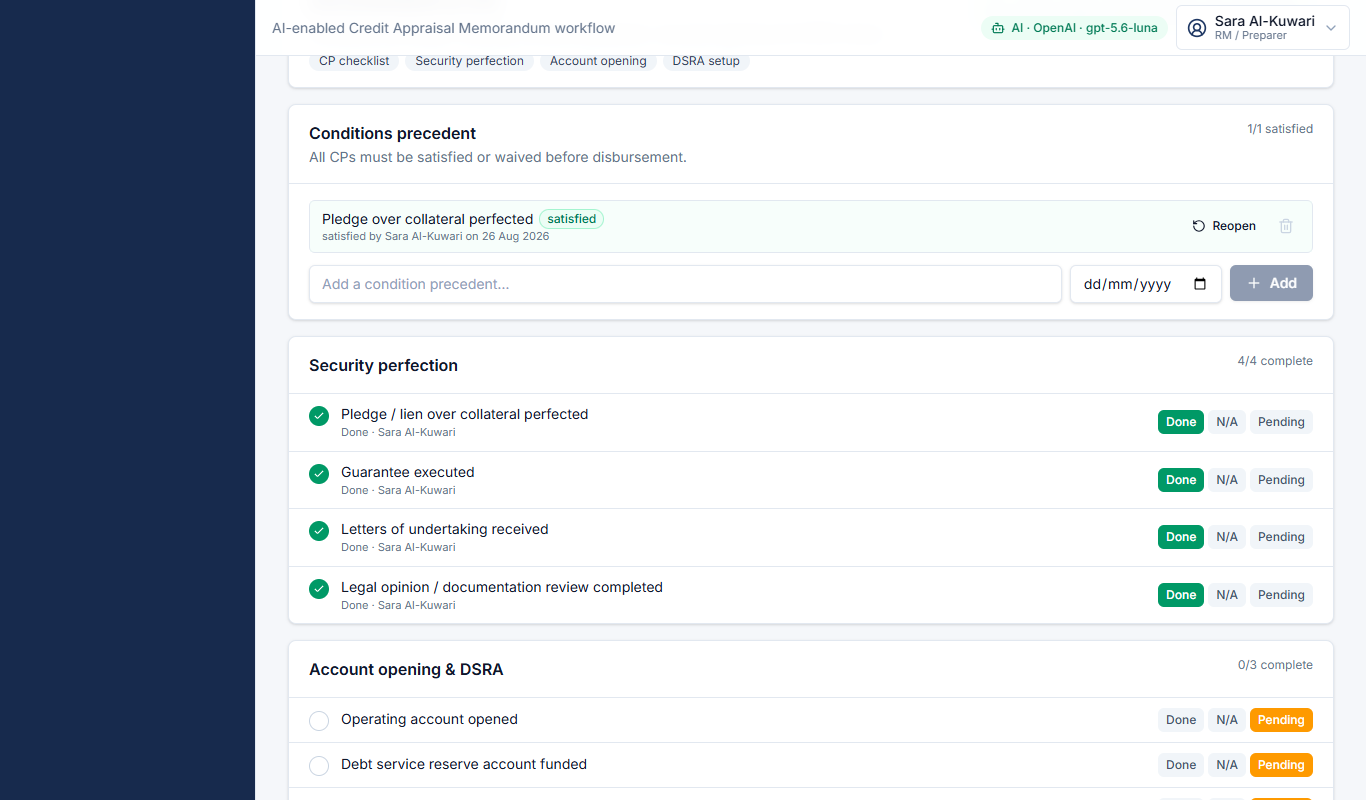
Documentation & CPs
Owner: Legal / Credit Administration
- Mark each condition precedent satisfied or waived (who and when is recorded).
- Complete the security perfection and account / DSRA checklists; record covenants for monitoring.
Gate No open CP; security checklist complete.
9
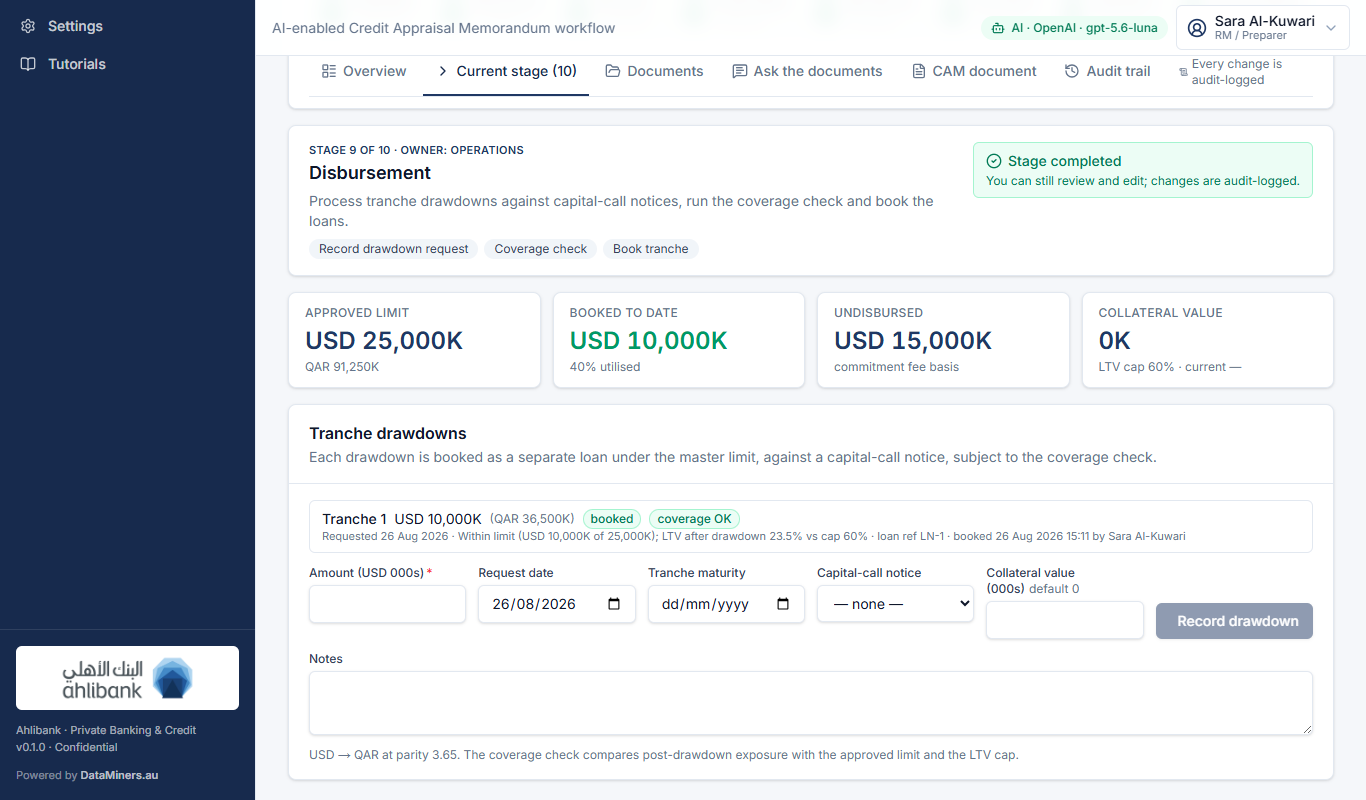
Disbursement
Owner: Operations
- Record a drawdown (USD 000s, capital-call notice, collateral value) — the coverage check tests the approved limit and the LTV cap.
- Approve, then Book tranche with the loan reference.
Gate At least one tranche booked.
10
Monitoring & Renewal
Owner: RM + Risk + Credit Admin
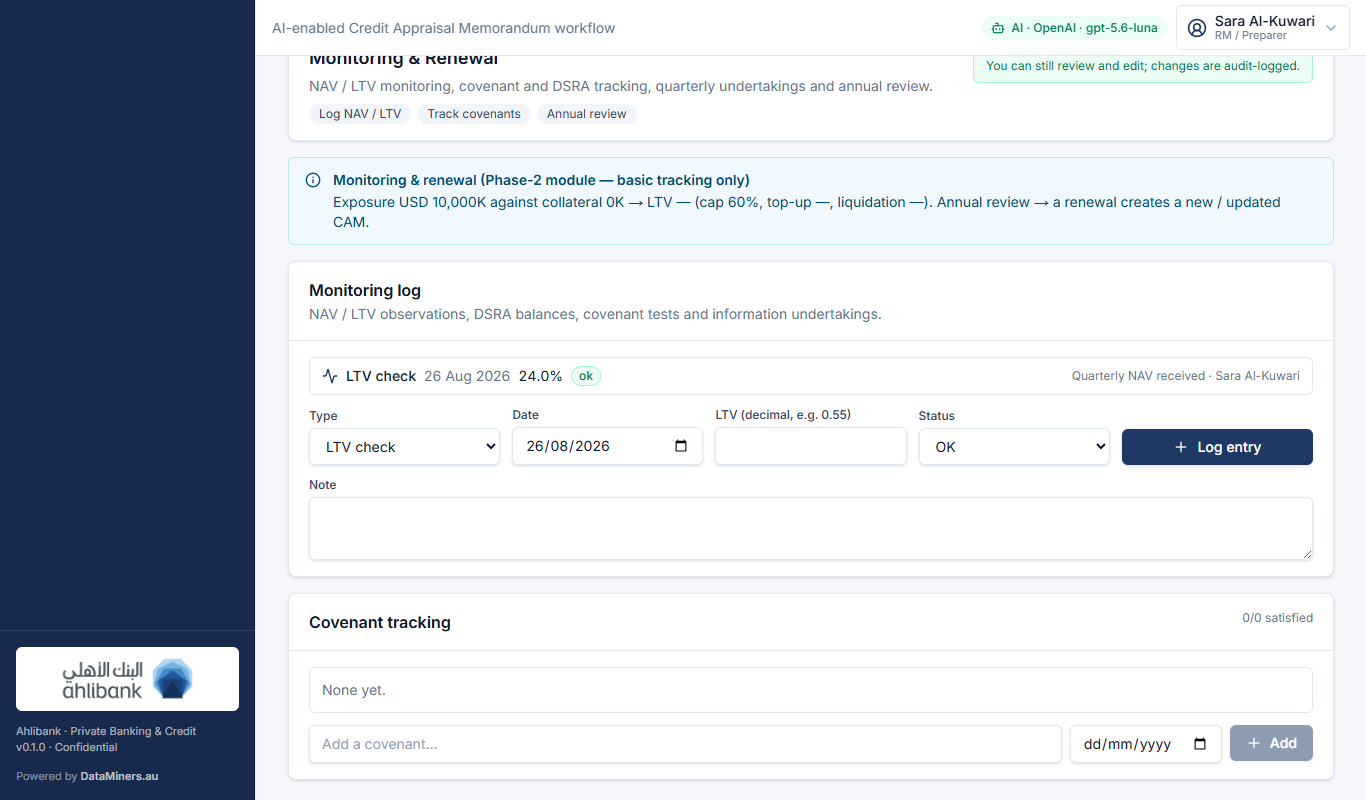
- Log NAV / LTV / DSRA / covenant tests and quarterly undertakings; a warning appears when LTV passes the top-up trigger.
- Annual review → renewal creates a new or updated CAM (Phase-2 module — basic tracking only).
Gate —
5. How the AI is used
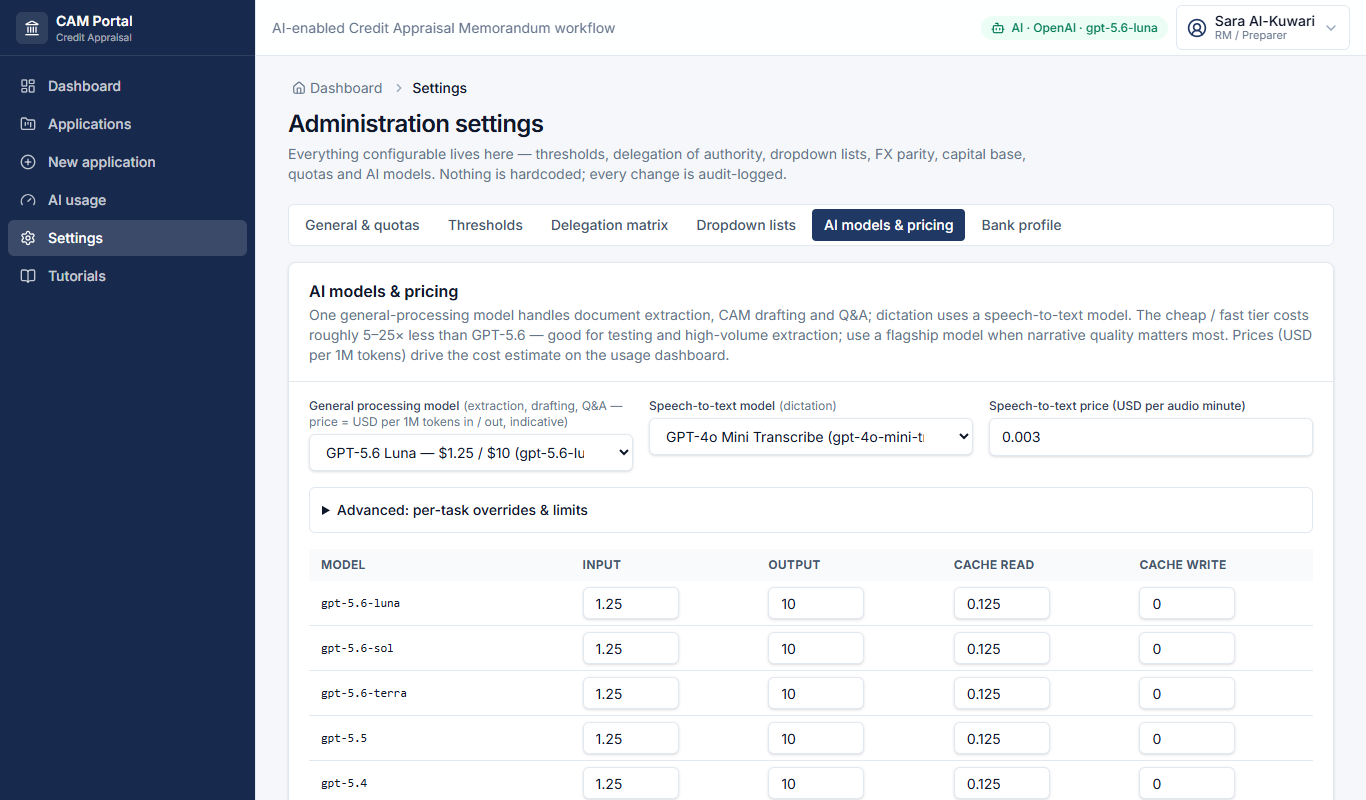
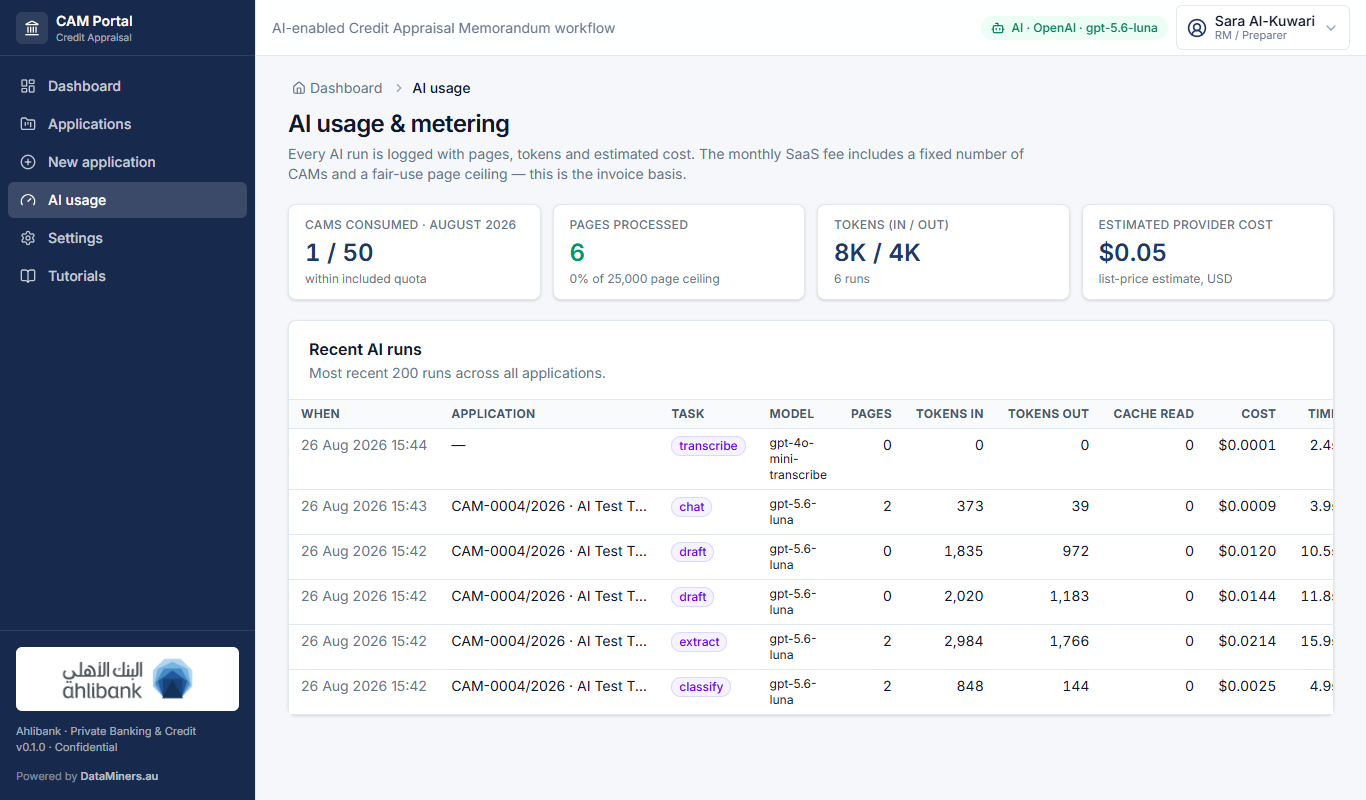
OpenAI models for reading, drafting and Q&A — GPT-5.6 Luna by default; Sol / Terra, the flagship GPT-5.x models and a cheap / fast tier (down to GPT-5 Nano) are selectable in Settings — plus GPT-4o Mini Transcribe for dictation. Every run is metered.
| Feature | Where | What the AI does | What you do |
|---|---|---|---|
| Classify & extract | Stage 2 → Run AI extraction, or Extract per document | Reads each PDF / scan / Excel / Word, fills spreads, parties and collateral. Every number carries the page it came from. | Verify amber values (click p.N to open the page), then Mark all verified. |
| Ratios & red flags | Stage 2 · Stage 5 · Overview | DSCR, interest coverage, leverage, liquidity, coverage, LTV vs the thresholds in Settings → Good / Acceptable / Weak. Flags missing documents, stale valuations, audit opinions, adverse trends. | Resolve each flag with a note; calibrate thresholds in Settings. |
| Draft narrative | Stage 2 · CAM document tab | Drafts the CAM sections from the verified facts with (Source: document, p.N) citations. Drafts are marked “AI draft” until approved. | Edit in markdown, Approve. Re-draft any single section at any time. |
| Rating suggestion | Stage 2 (propose) · Stage 5 (validate) | Suggests R01–R10 with rationale, weaknesses and conditions a reviewer might attach. | The analyst sets the rating; Risk Management confirms or overrides. |
| Ask the documents | “Ask the documents” tab | Answers questions strictly from the uploaded pack, citing [file, p.N]; says so when the answer is not there. | Use it for committee / reviewer questions; click a citation to open the page. |
| Dictation | Mic buttons on comments, sections, justification, Q&A | Speech-to-text (GPT-4o Mini Transcribe) inserted into the field. | Needs a microphone and HTTPS. |
| Metering | AI usage page | Pages, tokens, cost and duration per run; monthly CAM and page quota. | Admin review / invoice basis. |
![Ask the documents: answers cite [file, p.N].](/tutorials/31-chat.png)
6. Demo data & tips
- Two seeded applications: CAM-0001 (Demo PE Holdco, Stage 2 — fresh, no documents) and CAM-0002 (Al Noor Trading, Stage 5 — spreads, ratios, sections and sign-offs already done). Try Complete & move to Stage 6 on CAM-0002.
- No login yet: any user can work any stage. Use Acting as so signatures and the audit trail show the right person. Role restrictions are switched on later.
- The CAM document tab shows the whole memorandum as it will export; Export CAM (.docx) is in the banner.
- The Audit trail tab lists every change with before / after values — nothing there can be edited or deleted.
- Thresholds, delegation matrix, dropdown lists, FX parity (3.65), capital base, quotas and models all live in Settings.
7. Glossary
- CAM
- Credit Appraisal Memorandum — the document the committee approves.
- Gate
- The conditions a stage must meet before the application can move forward.
- Tracking sheet
- Log of hand-overs between units, generated from stage transitions.
- Approval level
- L2 → L1 → Credit Committee → Executive Committee, routed by exposure, rating, large-exposure and related-party rules (delegation matrix).
- R01–R10
- Obligor risk rating scale, R01 strongest.
- CP
- Condition precedent — must be satisfied before disbursement.
- DSRA
- Debt service reserve account (e.g. 12 months of interest).
- LTV / top-up / liquidation
- Loan-to-value cap, the level that triggers a collateral top-up, and the level that allows forced liquidation.
- Security coverage
- Collateral value ÷ exposure.
- QAR 000s
- All amounts in thousands; USD converted at the fixed parity in Settings (3.65).